


GitHub offers a convenient SSH key feature for accessing your repositories on the command line. Instead of using usernames and passwords every time you push to or pull from your repository, you can use your key. In this blog we’ll learn how to add SSH keys to your GitHub account.
Why use an SSH key?
Using an SSH key is a convenient and secure way to access your account. It’s convenient because you don’t need to remember a long password. And you can make your actual password so brutally long and secure that no human or bot could guess it. The SSH key works like an actual key that only you possess.
Generate a SSH key
For Windows 10 users, open either PowerShell or gitbash on your system.
Start your PowerShell with “Administrative” rights
For Linux open terminal
Enter the following command, substituting demo@github.com with your email address:
ssh-keygen -t ed25519 -C "demo@github.com"Note: If you are using a legacy system that doesn't support the Ed25519 algorithm, use:
ssh-keygen -t rsa -b 4096 -C "your_email@example.com"The ssh-keygen generates a combo of personal and private encrypted SSH tokens. There are primarily two kinds of encryption algorithms used during SSH creation:
- ed25519
- rsa
When you're prompted to "Enter a file in which to save the key", you can press Enter to accept the default file location. Please note that if you created SSH keys previously, ssh-keygen may ask you to rewrite another key, in which case we recommend creating a custom-named SSH key. To do so, type the default file location and replace id_ssh_keyname with your custom key name.
>Enter a file in which to save the key (/home/YOU/.ssh/ALGORITHM):[Press enter]
>Enter passphrase (empty for no passphrase): [Type a passphrase]
>Enter same passphrase again: [Type passphrase again]
The default location and id_ed25519 is the default key name: both for public key (with .pub extension) and for the private key.
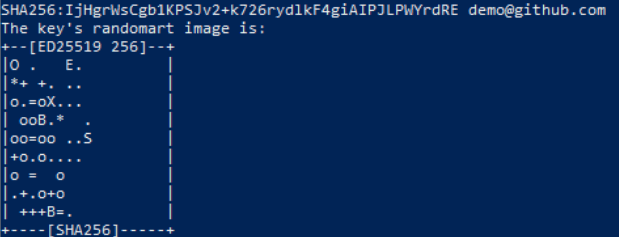
after that you will screen like this:
Step 3: Adding SSH key to your GitHub account
The ssh-key with the .pub extension is to be added to your GitHub Account. Copy your public ssh-key.
cat ~/.ssh/id_ed25519.pub | clipcopied key look like this:
ssh-ed25519 AAAAC3NzaC1lZDI1NTE5AAAAIEei8RnhR45hvyx2CYmrYPimNQzepcY6Fg43rEmOUQmn demo@github.com
Now Log into your GitHub account.
Click your avatar and choose Settings

Select SSH and GPG keys
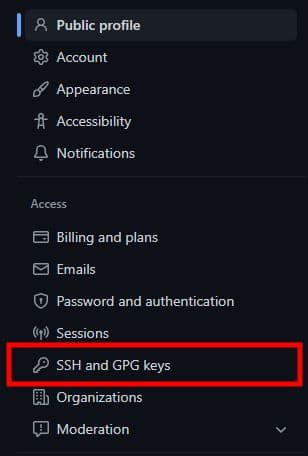
Click New SSH key

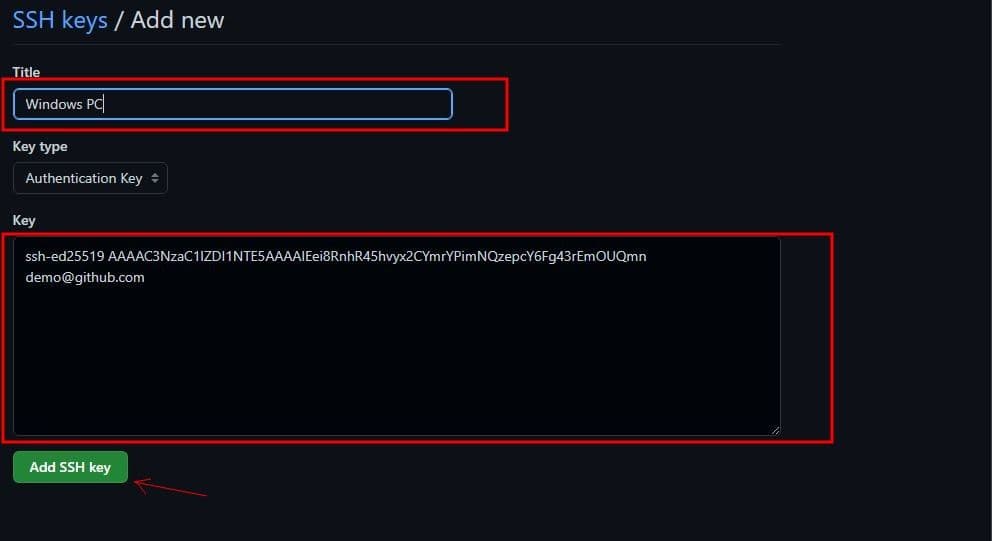
Enter a title in the field
Paste your public key into the Key field
Click Add SSH key
Well done! You now know how to add SSH keys to your GitHub account.